You can read Academia in order or open it for one specific question. The materials are available without registration. A browser is all you need to get started; keep your practical notes wherever suits you.
The shortest route: state the question, find a matching topic, work through the example and check your understanding. If the material doesn't answer your question, refine the search or move to a related article.
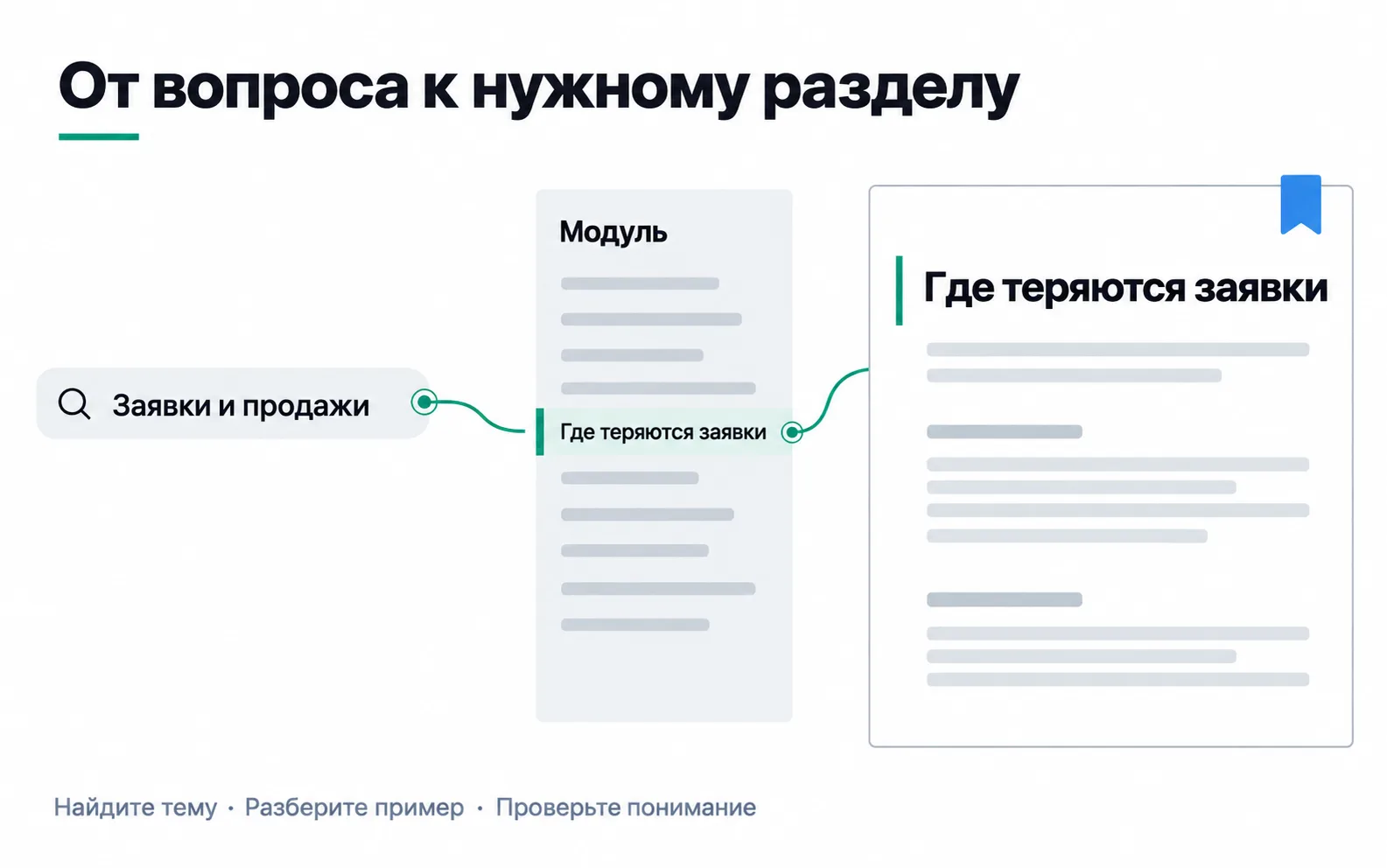
Find your topic in the catalogue
The Academia catalogue has a search box and a module filter. Search covers the title, the description, the section headings and the tags. Try a short term: CRM, CAC, GA4 or server-side. A long conversational phrase may not appear in any of those fields.
On a computer the modules sit in the left-hand column. On a phone, use the "Module" field under the search box. Text search applies on top of the selected module: if there are no results, check both conditions.
The "Reset filters" button clears the restrictions. Filters are reflected in the page address, so you can copy the link to a set of results and open it later.
Choose a route that fits the task
| Your task | Starting point |
|---|---|
| Put the marketing basics together into a system | Module 01 |
| Understand how website events are measured | Module 10 |
| Understand server-side data transfer | Module 13 |
| Prepare an experiment | Module 14 |
| Check what you know | Module 18 |
These are starting points, not compulsory learning tracks. If you meet an unfamiliar concept, follow the related link and then come back to your original question.
Jump to the section you need
Open "Article contents" and pick a heading. The address gets a fragment that points to that section. You can save a link like that or send it to a colleague along with your question.
The "Back to Academia" link returns you to the catalogue settings the article was opened with. The previous and next articles help you move in order, and "See also" takes you to related topics.
The time estimate refers to reading the text. Working through a calculation, watching a video and doing the exercise all take extra time. Don't treat the estimate as a timer setting a pace you have to keep.
Reading tables and images on a phone
A wide table scrolls horizontally inside its own frame. If the right-hand column is out of view, slide the table across and then match it back to the row label. On a computer the table area is also reachable from the keyboard.
Tapping an illustration opens it on its own, where you can zoom in using the browser. The caption explains what the diagram means and the limits of the sample data. An important calculation is worth checking against the text as well, not just the picture.
Use the test as feedback
At the end of the last lesson in every module there is a mini test with explained answers. You can reach it from the catalogue. For a separate check of the basics, open the full marketing test.
Once you have checked an answer, read the explanations, including the ones for the wrong options: they show where a misunderstanding could have come from. Practising again helps you work through a mistake, but it does not change the result of your first attempt.
Test progress is stored in this browser. It is not synced through an account, and clearing browser data can delete it. The site keeps no log of the lessons you have read. Save your own calculations and notes separately.
Exercise: why the search came back empty
You selected module 01, typed GA4 and didn't find the article you needed. Does that mean the topic isn't in Academia?
Answer: no. The search was limited to the selected module. Clear the filter or select module 10 and search the short term again. Open a suitable article, find the section you need and save its address. This is a navigation check, not a test of how well you can configure GA4.