An online school in Almaty sells an analytics course for 25,000 ₸ and spends 120,000 ₸ a week on Instagram ads (the numbers in this lesson are made up). On Monday the media buyer sends a GA4 report: the ads brought in 40 leads at 3,000 ₸ each. The manager opens the CRM and finds only 34 with the same tags. The owner writes in the team chat: "Which one of you is lying?"
Maybe neither. GA4 counts how many times an event fired, the CRM counts how many leads were saved. The two numbers match only if the event is sent exactly when the lead is saved. In this lesson you will write that condition down for one form, test the form against errors and repeat submissions, and learn to reconcile the two numbers without looking for someone to blame.
An event records something you can see
GA4 records events, and Google sorts them into four groups. Some of them the tag collects by itself or with enhanced measurement: session_start, scrolls, form submissions. Recommended and custom events have to be set up, or they will not exist, and a lead is one of those. So a GA4 tag on the site does not mean leads are being counted.
For leads, Google has the recommended event generate_lead. The list of recommended events describes it as submitting a form or a request for information. The name hints at the meaning but does not say when to send the event. You pick that moment, and it has to leave something you can check afterwards: a button click, a "saved" reply from the server, a "paid" status in the CRM.
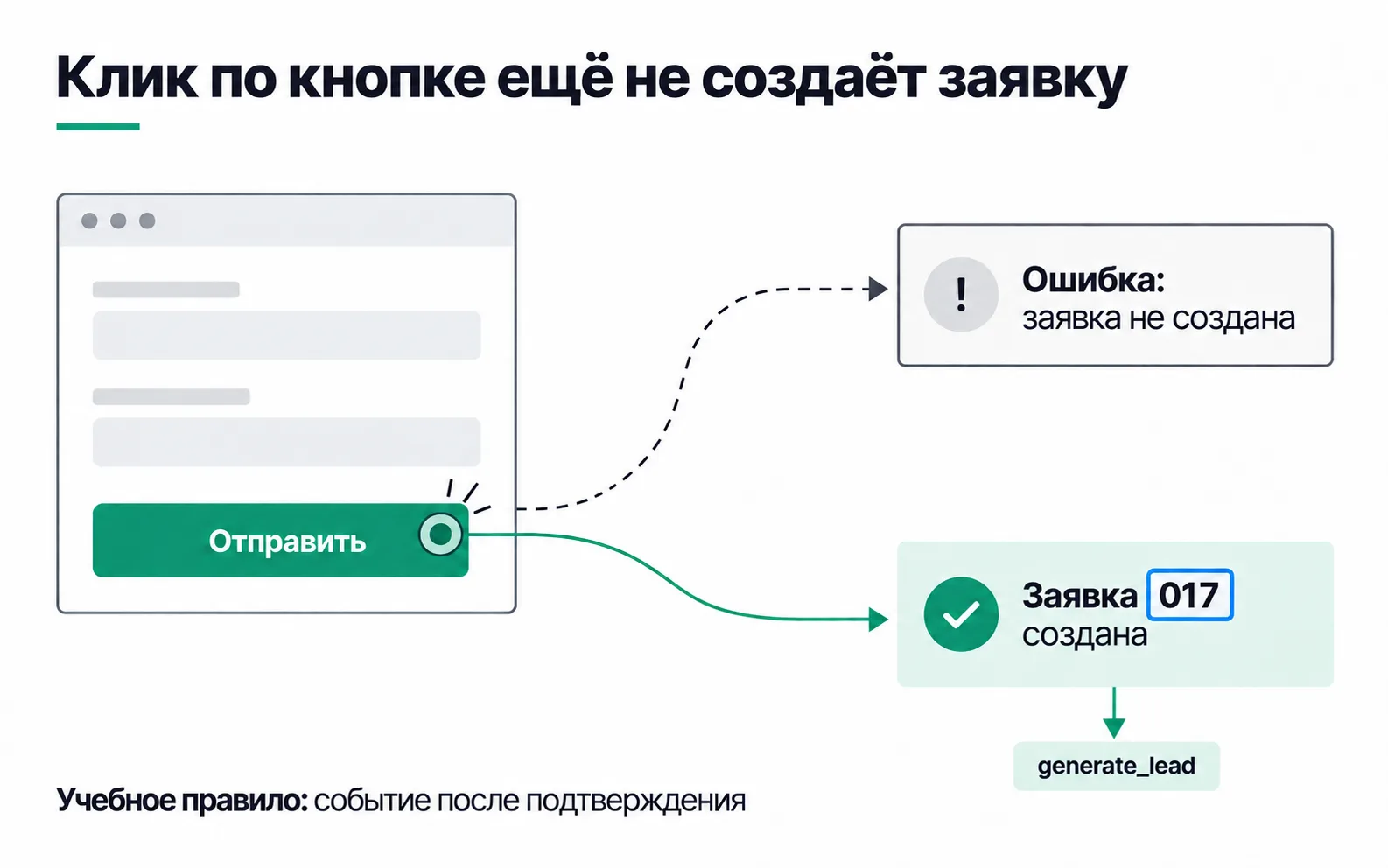
For the school, the right moment is the server's reply. A click is not a lead yet: the email field may be empty, the server may return an error. For the same reason the enhanced measurement form_submit event will not do for leads: it fires when the form is submitted and does not wait to hear what the server says. Later stages have events of their own: a lead the manager judged a good fit is sent as qualify_lead, a payment as purchase. Fold all of that into one generate_lead and a month later nobody can tell what it was counting.
Even a correctly set up event is not the same thing as a lead. The lead sits in the CRM until someone deletes it, while the event is a signal from the browser that may never arrive. Say the site has a cookie banner and consent mode uses the basic implementation. Someone who declines analytics will still submit the form, and GA4 will never hear about it. That is why the list of leads lives in the CRM, and GA4 is there to show where people came from and what they did on the site.
A measurement plan for one lead
Before you open GTM, write a measurement plan. The school started one in setting up GA4 through GTM: four rows with page_view, form_start, generate_lead and the form_name parameter. The lead row needs more detail than the others: the developer sets up the event from it, and a month later it reminds you what the report actually counts. Spelled out, it takes seven rows:
| What we describe | The school's generate_lead |
|---|---|
| Question | How many course leads Instagram ads brought in this week |
| Condition | The server replied that the lead was saved to the CRM |
| Event | generate_lead, marked as a key event in GA4 |
| Parameter | form_name with the value course_signup |
| Not a lead | A form error, a repeated click, a reload of the "Thank you" page |
| Source | UTM tags are saved in hidden form fields and reach the CRM |
| How we check | A run through the form in DebugView, plus the record in the CRM |
The form_name parameter has to be registered in GA4, or it will not appear in reports, and generate_lead has to be marked as a key event. Both steps are covered in the GA4 lesson.
Names, phone numbers and email addresses never go into parameters. Google prohibits sending personal data to Analytics, and the rule covers event parameters and page URLs alike. If the form sends people to /thanks?phone=... after they submit it, the phone number goes to GA4 with the page_view.
The most useful row in the plan is "Not a lead". Without it, the developer has no reason not to fire the event on the button click: it is quicker, everything works in preview, and the extra events only surface a week later.
What must not count as a lead
To see how the form actually works, go through it by hand: once with everything right, then with every mistake a real person will make. For each case, write down in advance how many leads should appear in the CRM and how many events in GA4:
| Case | New leads in the CRM | generate_lead events |
|---|---|---|
| Form filled in correctly | 1 | 1 |
| Email left empty, the form flags an error | 0 | 0 |
| The server failed to save the lead | 0 | 0 |
| Two quick clicks on "Submit" | 1 | 1 |
| The "Thank you" page reloaded or opened again | 0 | 0 |
| The same person submits the form again the next day | 1 or 0, per the CRM's rule | 1 |
You cannot cause a server error by hand. Ask the developer to break saving on a test copy of the site, or at least to show you in the code that the event is sent after a successful response and not before it.
The last row is the only one where the mismatch is built in. GA4 counts form submissions. A CRM that merges repeats by phone number counts people. Nothing is broken here, the units are just different.
How to check in DebugView
DebugView shows events from your own device right away, without waiting for reports to be processed. Debug mode is switched on through GTM preview, the same way as when setting up GA4.
Open three windows side by side: the site in preview mode, DebugView (Admin → Data display → DebugView) and the CRM. Go through the cases in the table in order. At the school, a correct submission produced lead 017 in the CRM and one generate_lead in the DebugView stream. Click it: the parameters will include form_name with the value course_signup. An empty email field must not add a generate_lead to the stream, and two quick clicks must not add more than one.
DebugView answers one question: did the event leave your device at the right moment with the right parameters. What arrives from customers' phones only shows up when you reconcile with the CRM.
Testing has a side effect: the events you send while testing land in the standard reports as real leads. Google recommends filtering out developer traffic. In Admin, open Data collection and modification → Data filters, create a filter of the Developer traffic type with the Exclude action, and set its state to Active. The filter removes only events sent in debug mode, so test the form in GTM preview: a test lead from an ordinary tab will slip through into the reports. It also applies only to new data: tests you ran before it stay in the reports.
Where the lead came from
To separate leads from ads from everything else, the links get tagged. The school tags its Meta ads with the shared UTM scheme: utm_medium=paid_social, the campaign course_start, and the ad name in utm_content.
GA4 reads the tags from the page URL by itself. The CRM never sees them unless the form saves them in hidden fields along with the phone number. If the form is not on the page the person landed on, the tags are stored in a cookie on arrival and the form reads them from there.
If there are no tags, the CRM says exactly that: source unknown. A manager who types "Instagram" from a hunch does more damage to the reconciliation than an empty field, because a guessed source can never be told apart from a real one later. Write down separately in the plan which source the CRM keeps: the first tagged visit or the last one. That is not the same thing as GA4's attribution, and for a given lead the two answers may differ.
40 events and 34 leads: reconciling
The media buyer divided 120,000 ₸ by 40 events and got a CPL of 3,000 ₸. By the CRM it comes to 120,000 / 34 = 3,529 ₸ per lead. The owner uses that number to decide whether to extend the campaign, so a 529 ₸ difference on every lead is not a rounding error.
You cannot say the CRM lost six leads: two totals cannot tell you the cause. The six extra events could come from repeat submissions the CRM merged, from colleagues' test leads the manager later deleted, or from clicks with an empty email field if the tag fires on the button. Or it could be this: eight extra events, plus two real leads that never reached GA4 because the person declined the cookie banner. Either way the totals are the same, 40 against 34.
Reconcile step by step:
- Use the same period: the same seven days in both systems and one time zone.
- Break
generate_leadand CRM leads down by day. If the only days that disagree are the ones when the team tested the form, the developer traffic filter comes first. - Run the cases from the exceptions table in DebugView.
- Find CRM leads with the same phone number, and leads with no source, for that week.
The school went through these steps, and at the third one it turned out that generate_lead fired on the button click: an empty email field produced an event and no lead. Last week's data can no longer show how many extra events came from the button, how many from repeats, and how many leads GA4 missed because of declined banners. The developer moved the event to the server response, and next week gets reconciled from scratch.
Do not patch the numbers with a coefficient. "The CRM has 15% fewer, so multiply GA4 by 0.85" removes the gap from the report, not from the site: the tag still counts clicks, only now nobody can see it.
In the client report, label three things: what you counted (a lead is a CRM record tagged paid_social), in what units (form submissions or people, depending on the CRM's rule) and over what period. With those labels, the table itself answers "who is lying".
Exercise: a measurement plan for your own form
Take any form you have access to: the test site from week 1 of the Start track, a friend's business site or your own. If there is no CRM, the spreadsheet or inbox where leads arrive will do.
If an empty form produced generate_lead, the event fires on the click or on form_submit. Move it to the dataLayer event the site sends after the server responds. If reloading the "Thank you" page added an event, the tag fires on views of that page, and the fix is the same. When two quick clicks created two leads and two events, GA4 is counting correctly and it is the form that needs fixing: the button should lock after the first click. And if DebugView stays empty, the problem is the connection rather than the condition: look at whether the Google tag fired, whether it holds your own G- ID and whether you declined analytics in the cookie banner.
Show both tables and the screenshots to the client before the ads go live. When GA4 and the CRM disagree a month later, you will already have a document that says what counts as a lead.
Video: events and DebugView
The video is in Russian and belongs to a GA4 series: the kinds of events and how to connect DebugView.