An online school sells an analytics course for 25,000 ₸ from a page with a sign-up form, the same page as in the GA4 lesson (the numbers in this lesson are made up). The previous contractor attached the lead event to a click on the "Submit" button. Over a week GA4 counted 40 leads from ads while the CRM has 34, and the school's owner wants to know which number to believe.
Part of the gap is clicks after which no lead was saved: an empty email field, a phone number one digit short, a connection that dropped in the lift. The rest could come from double clicks and test leads from colleagues, and two totals can't tell you how much is which. A tag on the button counts clicks without a lead and double clicks just like real leads, and there is one fix for that: the site itself reports the lead once the server has accepted it, and Google Tag Manager passes that report on to GA4. Here is how to build it and how to test it before you show the numbers to a client.
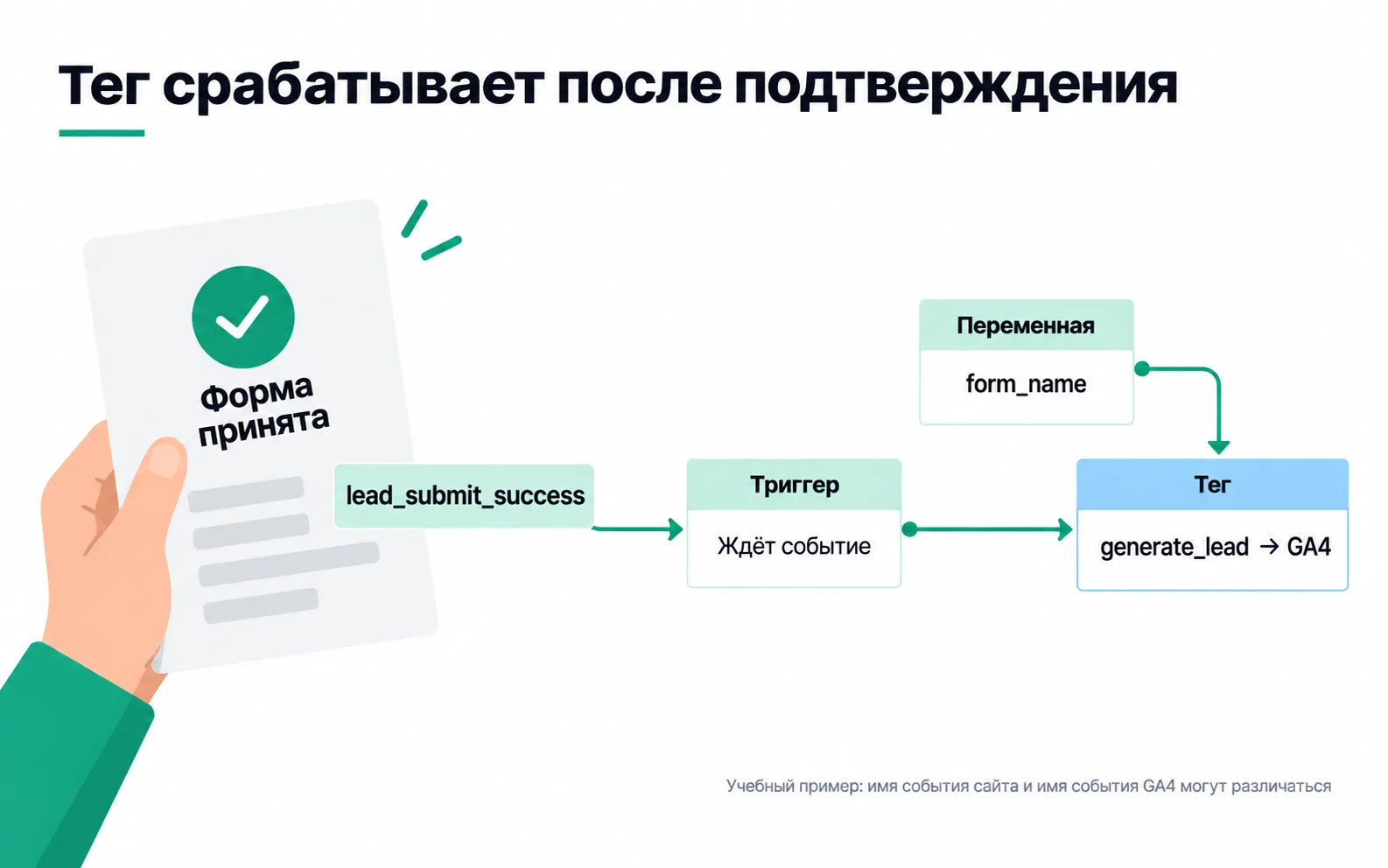
How GTM is put together
GTM doesn't store leads and doesn't build reports. It decides which code runs on the site and when. Everything you configure lives in a container. As a rule, that's one container per site: a developer pastes its code on every page once, and from then on tags are added without touching the site.
A container holds three kinds of objects (how they fit together):
| Object | What it does | In the school example |
|---|---|---|
| Tag | Sends data to another system | "Google Analytics: GA4 Event" named generate_lead |
| Trigger | Decides when the tag runs | "Custom Event" lead_submit_success |
| Variable | Fills a value into a tag or a trigger condition | "Data Layer Variable" form_name |
You edit all of this in a workspace, and nothing reaches the site until you publish. A container has a default workspace, and a standard account can add two more, so that you can fix the leads while a colleague builds tags for a new promotion. Every publish saves a container version, and you can go back to any of them.
The site reports the lead itself
GTM sees clicks, page views and form submissions, but it doesn't know what the server replied. So the lead is reported by the site's code, through the dataLayer, a message queue that GTM reads (how the dataLayer works). The task for the developer reads: "When the server replies that the lead is saved, run this code. On an error, send nothing."
What each part does:
eventis the name of the event the trigger will wait for. You and the developer choose it, and it can differ from the name in GA4: the site sayslead_submit_success, and GA4 receivesgenerate_lead.form_namesays which form this is. The school's site has two, course sign-up and a free consultation, and reports tell them apart by this field.valueis the lead estimate from the GA4 lesson: a 25,000 ₸ course, one lead in five pays, so a lead is worth 5,000 ₸. The number goes without quotes. To JavaScript,5000and"5000"are different values, and the GA4 event reference listsvalueas a number.- The first line picks up the existing dataLayer or creates an empty one if there is none. Google says plainly that
window.dataLayermust not be overwritten: writingdataLayer = [...]wipes out whatever other scripts have already put there.
Name, phone and email have no place in the push. Google Analytics policies forbid sending Google data that identifies a person, and GTM will send whatever you put into the tag. The phone number stays in the CRM, and the link between the lead and the ad is built separately; that is covered in the lesson on server-side tracking.
One last rule: everything that describes the lead goes into the same push as event. A value in the dataLayer lives as long as the person stays on the page, and the next push with the same key overwrites it. If form_name arrives in a separate message after the event, the tag goes out without it or with the name of the previous form.
Build the variables, trigger and tag
If the previous contractor left a generate_lead tag on the button click in the container, start there: delete it or pause it. Otherwise every lead sends two events, the old one and the new one.
- Variables. Open Variables, click New under User-Defined Variables and choose the Data Layer Variable type (variable types). Name it
DLV - form_nameand enterform_nameas the Data Layer Variable Name. BuildDLV - valueforvaluethe same way. The school's currency is always tenge, so there is no reason to send it from the site: create a Constant variable with the valueKZT. - Trigger. Triggers → New → Custom Event (how to set it up). Paste
lead_submit_successinto Event name, copied from the code rather than retyped: the trigger fires only if the name matches what the site sent. If the tag should run for the course form only, switch from All Custom Events to Some Custom Events and set the conditionDLV - form_nameequalscourse_signup. - Tag. Tags → New → Google Analytics: GA4 Event (GA4 events in GTM). Enter the
G-...Measurement ID, typegenerate_leadinto Event Name and add three parameters:form_namefromDLV - form_name,valuefromDLV - value,currencyfrom the constant. Under Triggering, pick the trigger from step 2.
The Google tag with the same G- ID should already be on every page, as in the GA4 lesson.
Training lab: exercises 1 and 2
Before you touch a live container, complete exercises 1 and 2 in the training lab: in the first you push a form event to the dataLayer, in the second you build a lead tag. The Start track step counts as done when both exercises pass the lab's check. The names differ from the school's: the lab's site calls the event generate_lead straight away, passes the form in form_id, and the currency is USD. The wiring is the same.
- Exercise 1, "Send a form event". The
trackLead(form)function should sendgenerate_leadonly for a valid form, take the ID from the form that was actually submitted, and passvalueas a number. Don't copy the name or email from the form into the event; the check looks for that too. - Exercise 2, "Configure a lead tag". The variables, trigger and tag are already built, but the tag doesn't fire. Compare the event name in the trigger with what arrives in the dataLayer, keep the
form_idcondition, and confirm thatvaluein the tag changes along with the source event while the currency comes from the constant.
Save a screenshot of the green check; that's the result of the step.
Preview: "tag fired" is only the first check
- On the Workspace tab, click Preview (how the mode works). Tag Assistant opens in a new tab. Enter the site address and click Connect; the site opens in a new window. Go back to Tag Assistant and click Continue.
- Submit the form with valid data.
lead_submit_successappears on the left in Tag Assistant. Click it: the GA4 tag should fire on exactly this event, and the variables should showcourse_signupand5000.
This is where it's easy to decide you're done. But "tag fired" only means GTM ran the code. The request may have gone out with an empty parameter, to someone else's property, or twice, so three more checks follow.
- The request. Open the browser's developer tools, go to the Network tab and filter by
collect. Find the request togoogle-analytics.com/g/collectoranalytics.google.com/g/collect(where to look for it). A response status of 200 or 204 means the data was sent. Open the request: the URL should containgenerate_lead,course_signupand yourG-ID. - The receiver. In GA4, open DebugView, as in the GA4 lesson.
generate_leadshould arrive once, withform_name,valueandcurrency. - Error and repeat. Submit the form with an empty email field: neither
lead_submit_successnorgenerate_leadshould appear. Then submit a valid form and reload the page. If a secondgenerate_leadarrives after the reload, look for what sends it: code on the "Thank you" page that runs every time it opens, or the browser resubmitting the form. Two events for one submission are a reason to look for a second tag, such as the old click tag that nobody switched off.
Publish a version with a description
- Click Submit in the top right and choose Publish and Create Version.
- In Version Name, say what was done: "generate_lead on an accepted lead". In Version Description, say what was tested: "Tag on lead_submit_success, form_name and value from the dataLayer, currency KZT. Tested a successful submission, an error, a page reload, the request and DebugView. Old click tag removed."
- Click Publish (publishing and versions).
A month from now, that description will answer who changed the lead count in the report and why. If something breaks after publishing, open Versions and publish the previous one, which is exactly what Google recommends. Whatever already reached GA4 stays there, though, so compare the days before and after the publish with that in mind.
After publishing, open the site in a normal window without Preview, submit one more lead and find the request in the Network tab again. Visitors get the published version, not the one you were looking at in Tag Assistant.
Assignment: the lab and your own form
If you don't have a test site yet, do the lab now and tick off the site items once you connect GA4.
If generate_lead shows up in DebugView but form_name is empty, open the lead_submit_success event in Tag Assistant and look at what was in the dataLayer at that moment. If form_name arrives in the next message, the tag has already gone by then: GTM reads the value at the moment of the event, and a later message won't fix a request that has already been sent. Ask the developer to put form_name in the same push. If the field is in the same push and the variable is still empty, compare the key in the variable with the code letter by letter: to GTM, form_name and formName are different keys.
And here is what you can tell the school's owner after the publish: GA4 used to count button clicks, now it counts accepted leads. The numbers still won't match the CRM to the last lead: GA4 doesn't see people who declined analytics in the cookie banner or browse with an ad blocker. But the gap will no longer depend on how many times people get the form wrong.
Video: setting up GA4 through GTM
A video from the Google Analytics channel, in English: the Google tag and a first GA4 event through GTM. Run the checks from this lesson on top of it.