Friday, 10:00, at the appliance store from the lesson on S2S tracking of payments (the numbers in this lesson are made up). A discount email went out in the morning, and five card payments have come in on the site since 09:20. The store's server answers its availability check and there is not a single error sending to Meta, yet none of the five purchases has reached Meta: at 09:15 the developer rolled out an update, and the outbox worker did not start after it. The oldest order has been waiting in the queue for 40 minutes, and there are zero errors because there has not been a single attempt.
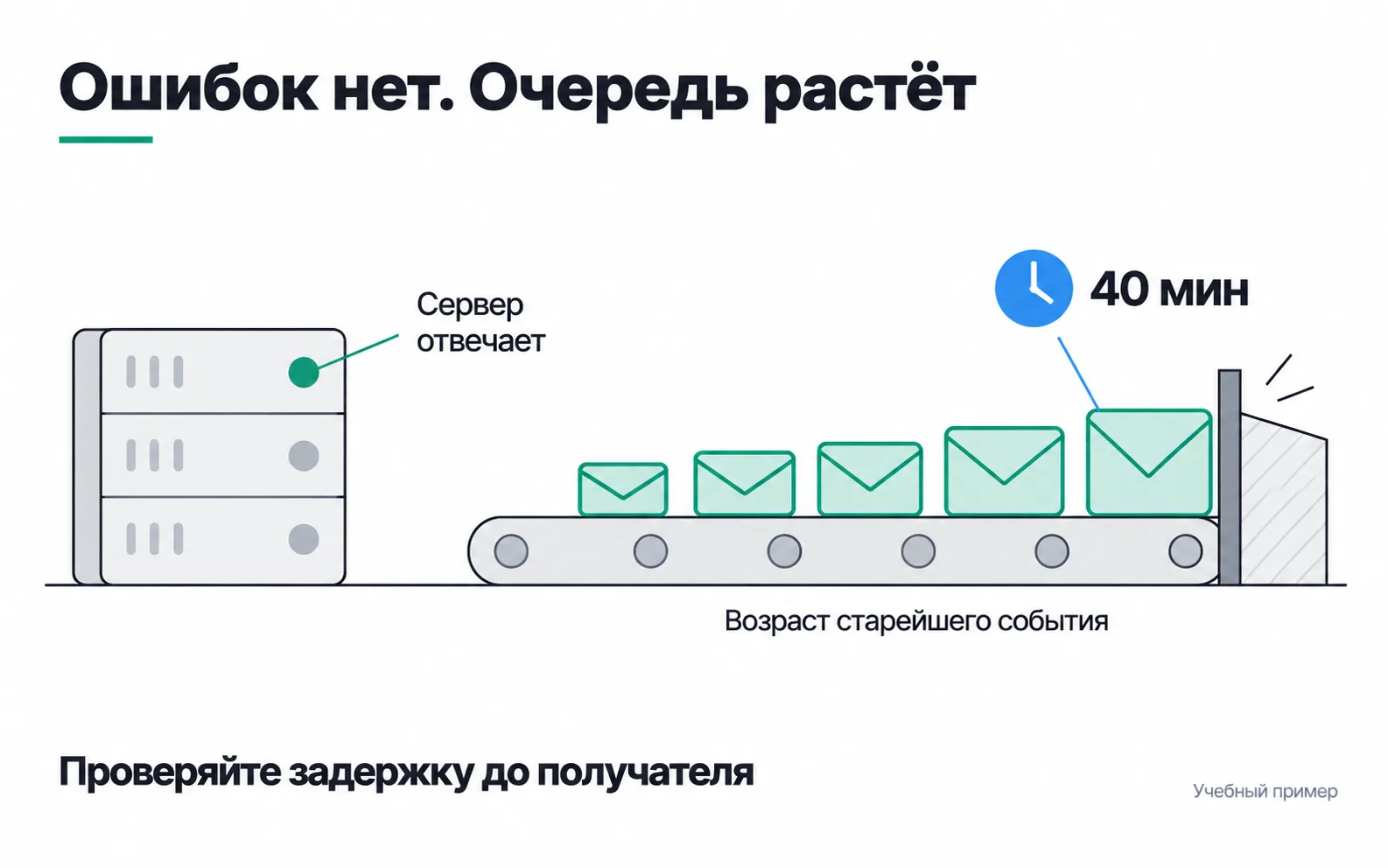
S2S monitoring answers one question: did the events for every payment reach their recipients? For that you need a send log, a morning reconciliation with the CRM, alerts with an owner, and the recipients' own tools.
A live server is not delivery
An availability check only says that the server is answering. For server-side GTM it is the /healthy address, set up together with the sGTM infrastructure. The store's server has a check of its own, but it says the same thing. An error counter stays silent when there were no attempts. And the success rate of sends is undefined when there were zero sends, so it must not be drawn as 100%.
The Google SRE book suggests watching four signals: latency, traffic, errors and saturation (monitoring distributed systems). For the store's server-side events they look like this:
| Signal | What to watch |
|---|---|
| Traffic | How many card payments appeared in the database and how many outbox rows went out to recipients |
| Latency | The age of the oldest unsent row and the time from payment to the recipient's response |
| Errors | Error responses from recipients, by code and by event |
| Saturation | Whether the queue is growing, whether there are enough workers, whether the server is hitting its limits |
On Friday two signals would have shown the stall: there are payments in the database but no sends, and the oldest row gets older every minute. Errors and saturation stayed quiet. But on an ordinary day the store has three or four card payments on the site, and an hour without sends means nothing, so its key indicator is the age of the oldest unsent row. SRE also advises measuring latency for failed requests: in their words, a slow error is even worse than a fast one.
What to write in the send log
The log answers the question "what happened to this order" even a week after the payment. For the store it is the outbox table with attempts and responses added. Here is the record for T-310 from the lesson on S2S tracking: payment at 14:05, the first attempt timed out, the second went through.
event_idandorder_idtie the record to the order in the CRM and to the event at the recipient.event_timeis the payment time,queued_atis when the event entered the queue. Delivery latency is counted from them to the last attempt.attemptsholds every attempt: when it went out and how it ended, with the response code and text. If retries suddenly become frequent, you see it before events start getting lost.statustakes one of five values:accepted,pending(waiting to be sent),failed(in the review queue),expired(too old) andskipped(not sent by rule, for example without consent to advertising cookies).skippedis there so that the reconciliation does not mistake a rule for a loss.
Hashed emails and phone numbers from user_data, the access token and secrets in addresses have no place in the log. ID, time and response are enough to investigate.
If some events go through server-side GTM on Stape, its request logs are kept for only a few days, depending on the plan (details in the lesson on where to host sGTM), so the outcome for each order is safer kept in your own database.
What the recipient's response means
A 200 means different things at different recipients, so the log stores both the code and the response text.
Meta returns a 2xx if the event data is valid and a 4xx with a short error description if it is not (Conversions API support). The error applies to the whole request: if even one event in a batch is invalid or older than seven days, Meta rejects the entire batch (sending events through the API). So the log has to show which events went out in one request: on an error, all of them go to review.
The GA4 Measurement Protocol returns no error even when an event is malformed or missing required parameters (validating Measurement Protocol events). A 2xx from GA4 only says that the request arrived. That is why new events are first sent to the validation server at /debug/mp/collect. It answers with a validationMessages list, where each error has a path to the field and a description. Such events do not show up in reports, and the validation server does not check api_secret or measurement_id; those you check by eye.
Reconciling with the CRM every morning
The log shows what happened to what was sent. What never went out at all only shows up when you compare with the CRM. So every morning someone on the team, or a script, sums up the previous day in one row: how many orders were paid by card according to the CRM, how many of them may be sent under the rule, how many went out and how many the recipient accepted.
Three days at the store:
| Day | Paid by card | May be sent | Sent | Accepted by Meta |
|---|---|---|---|---|
| Wednesday | 4 | 3 | 3 | 2 |
| Thursday | 3 | 3 | 3 | 3 |
| Friday | 7 | 6 | 6 | 6 |
Each gap means something different. "Paid by card" minus "May be sent" is the buyers who declined advertising cookies: that is how it should be, and you only check that the rule is being followed. "May be sent" minus "Sent" is events stuck in the queue. "Sent" minus "Accepted" is events the recipient rejected.
On Wednesday Meta rejected one event. On Thursday morning it is already in the reconciliation, and in the log it has a 4xx response with the error text, so the developer has somewhere to start. If the error is fixed within a week, the event is sent again with the same event_id and the original event_time. If not, Meta will no longer accept it. Events like this make up the 80 - 78 gap in the monthly reconciliation from the lesson on S2S tracking: 100 orders paid by card, 80 may be sent, 78 accepted, 50 attributed to ads.
The morning reconciliation will not notice the Friday stall: after the fix at 10:15 the queue drained, and by Saturday the Friday row adds up. A stall like this is caught only by the queue-age alert.
The fourth number of the monthly reconciliation, purchases attributed to ads, is not checked in the morning: that is attribution, and yesterday's number will keep changing until the attribution window closes.
The numbers for the reconciliation come from your own log, not from Events Manager. The overall counters on the dataset page add up browser and server events without deduplication (differences in event counts), so a purchase that arrived from both the Meta pixel and the server is counted there twice.
On a sale day, waiting until morning is too long. The same table is then filled in hour by hour, as in the lesson on where to host sGTM.
Alerts: on what and to whom
An alert is only useful if the person who receives it knows what to do. SRE puts the rule like this: every alert should be actionable. The store needs four rules:
| Condition | Who receives it | First step |
|---|---|---|
| The oldest unsent outbox row is older than 30 minutes | The store's developer | Check whether the outbox worker is running |
| A recipient returned a 4xx error | Whoever owns the event schema | Read the error text in the log and fix the field |
| The availability check does not answer | Whoever runs the server | Restart the server and check the hosting |
| The morning reconciliation found stuck or rejected events | Whoever owns the event schema | Find those orders' IDs and the reason in the log |
Thirty minutes is an example threshold; the lesson on S2S tracking started with an hour. The faster a row leaves on an ordinary day, the lower you can set the threshold, and at the store it leaves a second after the payment. A "zero sends in an hour" rule does not suit this store: with three or four card payments a day it would fire every night, and people would soon stop reading it.
With this rule, on Friday at 09:50 an alert would have arrived: "Purchases to Meta have stopped. 4 paid orders in the queue, the oldest waiting 30 minutes, last successful send at 09:05. Owner: the store's developer. First step: check whether the outbox worker started after this morning's update." It has everything a person needs: what broke, since when, how much is affected, who owns it and where to start.
If server-side GTM runs on Stape, alerts for it come from Stape Monitoring, available from the Business plan (Stape monitoring). It checks the logs against your rules, for example "fewer than one purchase in 24 hours", and sends email to up to ten addresses. Its General tab also shows, for each platform, how many requests went out and what share came back with a 2xx. The email comes once, when the rule fires, and the next one only after everything is back to normal. A missed first email will not be repeated, so it is better to list two recipients.
For the store's server, alerts are built on the cloud's tools or on a separate logs-and-metrics stack. If the guide you found collects logs with Promtail, look for another one: Grafana ended its support on 2 March 2026 and recommends moving to Alloy (Promtail status).
An alert that has never fired needs testing too. Before a big campaign, stop the worker on a test stream and see whether the email arrives and who responds to it.
Checking at the recipient
Your own log shows what the recipient answered. What it did with the event afterwards is visible only in its own interface.
Meta
- "Test events" in Events Manager shows individual events. Server events appear there if you send them with
test_event_code(testing server events). - "Diagnostics" shows problems with events detected in the last 24 hours, with a description and instructions. Critical issues are marked red, warnings yellow. If you leave an issue untouched for three days, it moves to "Previously detected" and the instructions disappear (about diagnostics in Events Manager). So open the tab at least a couple of times a week.
- The server event details have an "Event deduplication" tab with the keys you are sending and an "Event coverage" tab comparing server events with unique pixel events: Meta considers 75% coverage optimal. Another tab, Data freshness, shows the delay between an event and its receipt (monitoring your Conversions API setup).
GA4
Before launch, events go through the validation server described above. After launch, Measurement Protocol events typically show up in the Realtime report within a few seconds (verifying a Measurement Protocol implementation). To look at a single event in detail, send it with the debug_mode and engagement_time_msec parameters and find it in DebugView.
TikTok
In TikTok Events Manager a data source has Overview, Test events and Diagnostics tabs (monitoring and diagnostics in TikTok Events Manager). Diagnostics collects problems with events: what is wrong, how serious it is, and which dataset and ads are affected. Overview has a "Last received" field, but TikTok warns that event data there is not displayed in real time. Server-side sending to TikTok is set up through the TikTok Events API.
Recovering after a failure
After the fix, the queue is drained with the same event_id and the original event_time: the recipient recognises a repeat by the same key, and the purchase time stays the purchase time. The recipients' limits differ:
- Meta accepts events no older than seven days, and one old event rejects the whole batch. Such rows are marked
expiredbefore sending and taken out of the batch. - GA4 accepts Measurement Protocol events backdated by no more than 72 hours. An older event is accepted by default but gets the time "72 hours ago" (sending Measurement Protocol events), and the purchase quietly lands on the wrong day.
Write down the outcome of the failure: how many events got stuck, how many went out after the fix, how many expired. Resending purchases with new IDs to make the chart look even is not allowed: the recipient will take them for new purchases.
Exercise: a week of delivery on your project
Take a project with server-side events, your own or a client's.
If there is nothing to fill the "Sent" column with, that is your first finding: the project has no send log, and the work starts there. If there is nothing for "Accepted", recipients' responses are not being recorded anywhere. Both are worth telling the client in the first week's report: until this data exists, there is nothing to answer the question "do all purchases reach the ads" with.
The second part is a client's question. They send a screenshot of the General tab in Stape Monitoring: over the past day, requests to GA4 and Meta show 100% successful responses. The client asks whether that means all purchases are getting through. Write them a two- or three-sentence answer, then compare it with the walkthrough.
No, it does not. The rate is the share of 2xx responses among the requests sent, and GA4 answers 2xx even to an event missing required parameters. Orders that got stuck in the queue or never went out at all are not part of that share. Whether all purchases got through is shown by the morning reconciliation with the CRM: paid, may be sent, sent, accepted.