The online coffee shop in Almaty from the lessons on the Conversions API Gateway and the Meta Conversions API is launching ads on TikTok: short videos on how to brew coffee at home (the shop and the numbers in this lesson are made up). The developer who already sends paid orders from the CRM to Meta is asked to do the same for TikTok. The first idea is to copy the code and change the URL. The logic really is the same, but TikTok has its own field names, its own phone hash and its own place for the key in the pixel code, and those are exactly what break when you copy.
What the TikTok Events API is
The TikTok Events API is a server-side channel into TikTok. Your server sends events as a POST request to https://business-api.tiktok.com/open_api/v1.3/event/track/ with an access token, with no browser involved. The TikTok pixel runs on the page and only sees what happens while the page is open.
For websites, TikTok recommends running the Events API alongside the pixel rather than instead of it (about the Events API). TikTok's reasoning is that the pixel loses some events to connection problems and browser quirks, and the server makes up for them. The shop has a second reason: the browser never sees the payment to the courier a few days after the order.
You create the pixel in TikTok Ads Manager: Tools → Events Manager → Connect data source → Web, then a partner integration or manual setup (setting up and verifying the pixel). The access token for the Events API is generated in the pixel settings (Events API setup guide for web). It lives on the server and nowhere else.
Which events to send
TikTok is case-sensitive: purchase and Purchase are different events to it. So you copy each name from the list of standard events letter for letter (supported events). For the coffee shop the plan looks like this:
| What happened | TikTok event | Who sends it |
|---|---|---|
| Opened a coffee product page | ViewContent | pixel |
| Added to cart | AddToCart | pixel |
| Started checkout | InitiateCheckout | pixel |
| Paid by card on the website | Purchase | pixel and server, with one event_id |
| Placed an order to pay the courier | CourierOrder, a custom event | pixel |
| Paid the courier | Purchase | server only |
CourierOrder is the same custom event the shop created for Meta in the gateway lesson. TikTok shows custom events in reports and uses them for audiences, but you cannot optimise a campaign for them (custom events). For an order that is placed but not paid, TikTok has a standard PlaceAnOrder, but it is being phased out: it is supported until 2027, and TikTok advises against it for new setups (updated standard events).
The same article announced two renames: CompletePayment became Purchase, and SubmitForm became Lead. The old names keep working and TikTok converts them to the new ones itself, but for a new pixel it advises the new names. The help centre's list of standard events still labels the form event as SubmitForm (standard events), while the Events API documentation calls it Lead. If you collect leads rather than sales, use Lead.
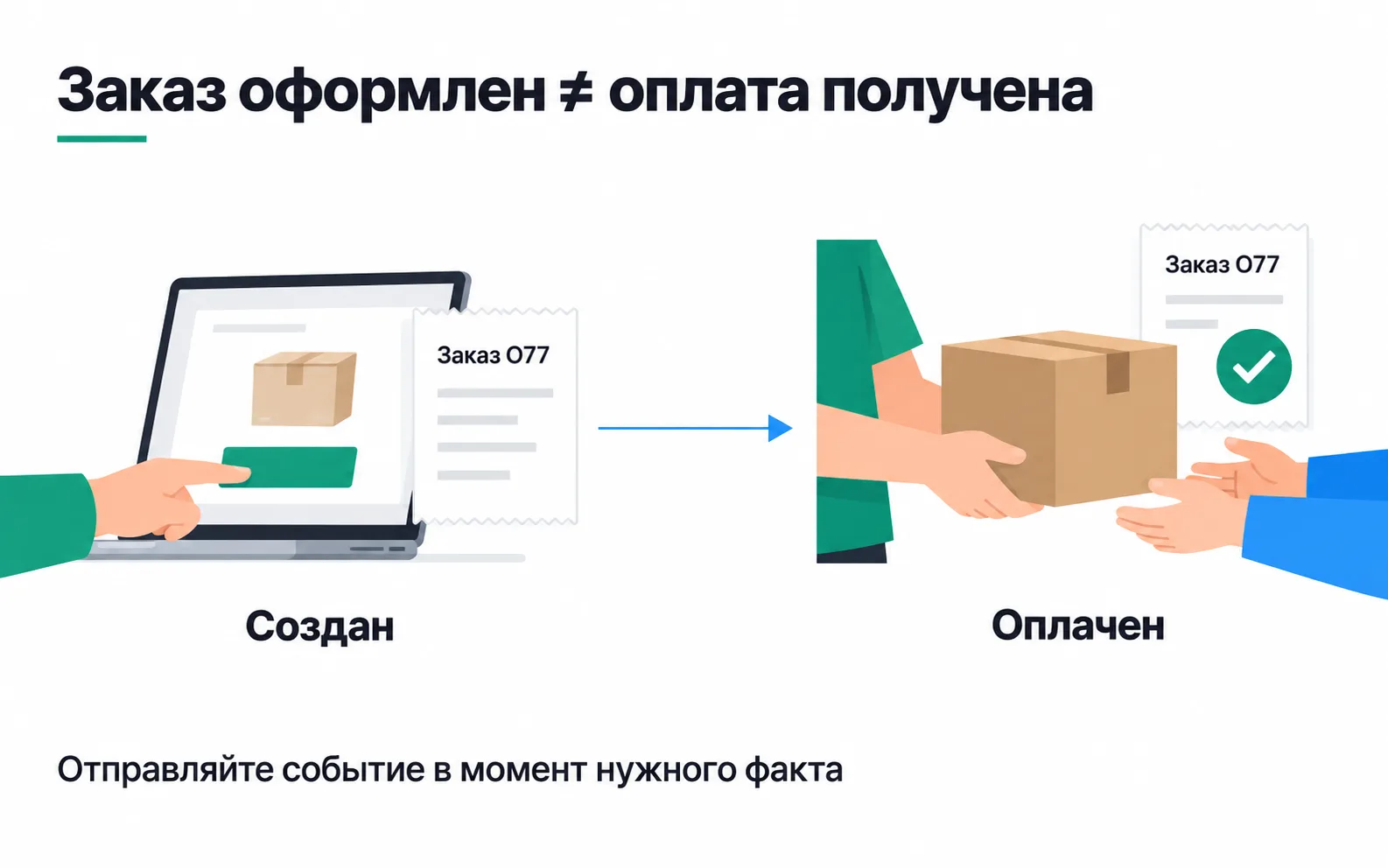
Order O42 and order O77
A purchase at this shop means the order is paid in full, and that rule is the same for Meta and TikTok. Let's take two orders.
O42 for 15,000 ₸ is paid by card on the website. The buyer sees the thank-you page and the pixel sends Purchase. A minute later the CRM marks the order as paid and the server sends the same Purchase. Two copies of one purchase that need to be merged.
O77 is a 240,000 ₸ coffee machine: 50,000 ₸ paid upfront on the website, the rest to the courier on delivery. Of the two options in the Conversions API lesson, the shop chose the first: one purchase for the full amount once the order is paid in full. The rule for TikTok is the same. On Friday, 9 October, at checkout, the pixel sent CourierOrder. On Monday, 12 October, at 15:00 the courier took the balance by Kaspi QR, the CRM marked the order as paid, and the server sent a Purchase for 240,000 ₸. This purchase has no browser copy, and it should not have one: the buyer closed the order page back on Friday.
Deduplication: event and event_id
TikTok merges copies that match on three things: the pixel, the event name (event) and the event_id. It keeps the first copy it receives and drops later ones with the same keys if they arrive within 48 hours. If a copy arrives within the first 5 minutes, TikTok also moves missing data from it into the first copy, an email address for example (event deduplication). Different events from the pixel and the server need no merging: AddToCart from the browser and Purchase from the server are not copies of each other (about deduplication).
In the TikTok pixel, event_id goes in the third argument:
In Meta the key sits in the fourth argument and is called eventID. A developer porting the code from memory can easily send TikTok an object with the key in the wrong place. The key is the order number, not the customer ID, and a retry after a timeout keeps the same key, for the same reasons as in the Meta Conversions API. All of it applies to TikTok.
Without an event_id, TikTok tries to merge copies by the _ttp cookie, but only within a 5-minute window and only by dropping the server copy. A server Purchase that arrives half an hour after the browser one will not be merged this way, so do not rely on it.
The server request
Here is the server-side send for order O77:
event_time is the moment the courier took the balance, in Unix seconds, UTC: 12 October, 10:00 UTC, which is 15:00 in Almaty. event_id is the order number, as with Meta. The differences from the Meta request show at once: event instead of event_name, user instead of user_data, properties instead of custom_data, and the pixel goes in the request body. One request can carry up to 1,000 events, but TikTok advises sending each one straight away, without batching.
Hashing and matching data
To link a purchase to an ad, TikTok matches it to a user by several keys (matching with the Events API):
ttclid: the click ID TikTok appends to the page URL when someone arrives from an ad. It stays valid for as long as the click-through attribution window in your attribution settings.ttp: the value of the_ttpcookie the pixel sets when first-party cookies are turned on in its settings.email,phoneandexternal_id: SHA-256 hashes only.ipanduser_agent: not hashed. The pixel sends them by itself; in the Events API you have to add them.
The normalisation rules (Events API setup guide for web): trim spaces from both ends of the email and lowercase it, bring the phone number to E.164 format with a plus and the country code, and only then hash. The email aigerim@example.com gives the same hash that went to Meta. The phone is different: Meta wants digits only, 77011234567, while TikTok expects +77011234567, and these two strings hash to completely different values. A comparison of the Meta, Google and TikTok rules is in the lesson on hashing contact data.
Payment to the courier comes days after the order, and at the moment of sending the server has no browser and no cookies. So ttclid, _ttp, the IP address and the user agent are stored on the order at checkout, the same as _fbp and _fbc for Meta. Do not substitute the server's IP for the buyer's: every purchase would look as if it came from one device. A buyer's refusal of advertising cookies stops this send too.
In the pixel settings, TikTok recommends turning on first-party cookies and Automatic Advanced Matching (Events API setup guide for web). Without the first there is no _ttp. The second lets the pixel find the email and phone in the checkout fields by itself and send them hashed, straight from the browser (Automatic Advanced Matching).
Checking: test events and counters
Before launch, send O42 in test mode (verifying the Events API setup):
- In Events Manager, open the pixel and the Test Events tab.
- In the section for server events, copy the test code.
- Add a
test_event_codefield with that code to the request body and send it. - Find the event in the test event activity: TikTok shows any problems with the request right there.
Before switching to production, remove the test_event_code field from your requests.
After launch, the pixel page shows how many events came only from the browser, only from the server, and from both (monitoring in Events Manager). An event that came through both channels is counted once there (event deduplication). Take the week from the gateway lesson, the same 140 orders but with the pixel fixed: 112 were paid by card on the website and 28 were placed to pay the courier; 21 of those were paid and 7 were refused at the door.
| Event | Expected for the week |
|---|---|
Purchase in total | 133 |
Purchase from the browser only | 0 |
CourierOrder | 28 |
There are 112 + 21 = 133 purchases, and all of them should arrive from the server. If any buyers refused advertising cookies, subtract their orders: neither the pixel nor the server sends them. Some card payments may show up as server-only: the buyer had an ad blocker or closed the tab before the thank-you page, which is exactly why the server is there. A Purchase from the browser only, on the other hand, means the server failed to send some payment: look for it in the send queue. And if there are more than 133 purchases, the copies did not merge, and the first thing to compare is the event_id in the pixel and on the server.
Partner integration, GTM or your own server
TikTok offers three routes: an integration with your store platform, an integration through a data partner, and a direct API integration (partner integrations).
- Store platform. Shopify, WooCommerce, Wix, OpenCart, PrestaShop and a few other platforms connect both the pixel and the Events API without code. For WordPress without WooCommerce, the list offers the pixel only. This is enough if every purchase is paid on the website and the platform knows its status.
- Google Tag Manager and other data partners. GTM can deploy both the pixel and the Events API, and Stape is on TikTok's list of companies that help with setup. If only the browser writes to the server-side GTM container, it will not see a payment to the courier, just as the Meta gateway did not.
- Your own server. You need it when the fact is born in the CRM or the backend. That is the coffee shop's case: only the CRM sees payments to the courier. The developer adds TikTok as a second recipient in the same send queue that already works for Meta, following the design from the lesson on server-to-server payment tracking.
You can combine routes, but then, before launch, list every sender of Purchase into the TikTok pixel. If the store plugin already sends a server Purchase and your server sends its own with a different event_id, the purchase is doubled.
Exercise: the Events API on your own project
A question to test yourself. The developer took the hashing function from the Meta code and sends TikTok the same phone hash. The requests go through without errors. What is wrong?
A hash cannot be turned back into a number, and TikTok has no way of telling that the number was written without a plus before hashing. So there is no error. But TikTok looks for a match among numbers in E.164 format, and the hash of 77011234567 will match none of them. Purchases keep arriving; they are just matched by email, ttclid and _ttp, and the phone never helps. You can only catch this in the code, or by running a test number through the function and comparing the hash with the table in the hashing lesson. The fix is one line: for TikTok, add the plus to the number before hashing.
Video: connecting the Events API
A walkthrough from Stape, in English, using server-side GTM. Before following it, check the event names against the list above.