The phone repair shop in Almaty from the lesson on the Google Ads search campaign spends 3,000 ₸ a day, and Google Ads counts leads from the "Book a repair" form (the shop and every number in this lesson are made up). The money, though, arrives at the counter when the shop hands a phone back. Lead L42 came in on Monday, 5 October, from the charging port ad. On Wednesday the manager agreed a visit with the customer on WhatsApp, and on Friday at 15:00 the customer picked up their iPhone and paid 12,000 ₸ by Kaspi QR. The website only saw Monday, and the owner wants to know which ads bring people who pay, not just people who leave a phone number.
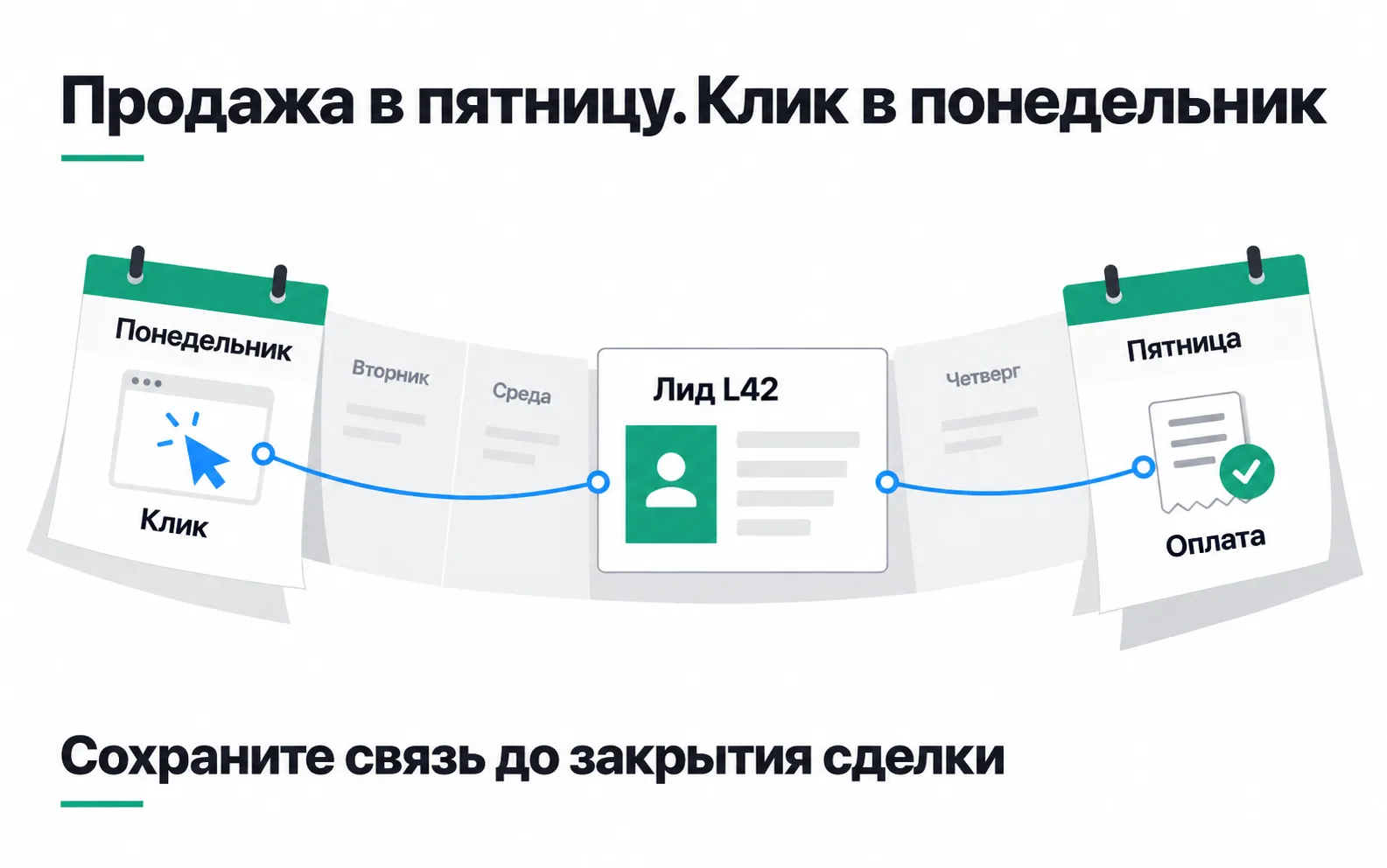
How offline conversion import works
An offline conversion in Google Ads is a customer action that happened away from the website: a payment at the counter, a signed contract, a purchase after a phone call. The import works in three steps (about offline conversion imports):
- A person clicks an ad, and Google adds a click identifier,
gclid, to the page address. The website stores it with the lead. - The lead turns into a sale, and you record the payment time and the amount.
- A row with the
gclid, the time and the amount goes to Google Ads. Google finds the click, and with it the campaign, the ad group and the keyword.
For a new setup, Google recommends starting straight away with enhanced conversions for leads, and advises those already uploading conversions by gclid to switch to it. It is the same import, except that along with the gclid Google receives a hash of the email or phone number from the form and uses it to find the click where the gclid got lost. The setup below uses both keys.
Step 1. Store the gclid with the lead
You cannot do this step retroactively: leads that arrived before the setup will stay without a click.
- Auto-tagging is on in the account, otherwise the
gclidnever reaches the URL (importing with the GCLID). - The form has a hidden field, and a script reads the
gclidfrom the URL, keeps it for 90 days and fills the field. Google provides a ready-made script in the same article; you can deploy it through GTM as a Custom HTML tag on all pages. All pages matters: a person can land on the repair page and book a day later from the prices page. - The
gclidis case-sensitive. Copy it into the sheet exactly as it is. - Instead of a
gclid, the URL sometimes carries awbraid: it arrives when a person clicked an ad inside an iPhone app and landed on the website (click parameters in the Google Ads API). Givewbraidandgbraidtheir own hidden fields and columns. Google's script does not save them, so it has to be extended. Google asks you to send them whenever they are present, and you must not write one identifier into another's column.
UTM tags do not replace the gclid. They tell you, in the sheet, that L42 came from the search_repair ad group, but Google needs its own click identifier.
A lead sheet like the one in the lesson on tracking leads gains a few new columns:
| Column | Lead L42 |
|---|---|
| Lead number | L42 |
| Lead date | 2026-10-05 |
| Phone | +77011234567 |
gclid | the value from the hidden field, unedited |
utm_content | search_repair |
| Status | Paid |
| Payment time | 2026-10-09 15:00:00+05:00 |
| Amount | 12000 |
| Currency | KZT |
Sometimes the gclid never reaches the lead: a person clicked the ad on their phone and booked the next day from a laptop. The phone number from the form is still there, and the next step exists for exactly these rows. People who went straight to WhatsApp can only be matched if Google recognises the number in the Google account that clicked the ad (about enhanced conversions). Do not count on it.
Step 2. Turn on enhanced conversions for leads
Since June 2026, enhanced conversions for the website and for leads are switched on with a single checkbox (updates to enhanced conversions settings):
- In the Goals menu, open Settings and expand the Customer data use panel.
- Tick "Turn on enhanced conversions", click Agree and save, and accept the data terms.
- In the settings of the Google tag that connects the website to Google Ads, click Manage automatic event detection and tick Form interactions. The tag will then pick up the data from the form on its own (setup with the Google tag).
Google suggests email as the key because it is a unique identifier. The repair shop's form only asks for a phone number, which also works, but the number has to include the country code. Google strips spaces and dashes by itself during the import, but 8 701 123 45 67 has no country code, so the phone field needs an input mask starting with +7.
The phone number goes to Google as a hash, but it is still the customer's personal data. Google's policy requires you to tell customers clearly, for example in your privacy policy, that their data is shared to measure advertising, and to get consent where the law requires it (customer data policies). Google's and Meta's rules are compared side by side in the table on hashing contact data.
Step 3. Create a conversion action for the import
The conversion action is where Google Ads puts the uploaded rows. The repair shop calls it "Repair paid".
- In the Goals menu, open Summary and click Create conversion action.
- Choose Import, then "CRMs, files, or other data sources" and "Track conversions from clicks".
- In the Data Source section, click Connect a new data source, find Google Sheets and choose Direct connection.
- Pick a goal category and name the conversion.
For imports, Google strongly recommends two goals: Qualified lead and Converted lead (importing with Data Manager). The first is for leads you have checked and accepted as yours, the second for those who reached the step you care about (lead goals). "Repair paid" is a converted lead. If later you also want to send "Booked a visit", that is a qualified lead and a separate action.
Wait 4-6 hours after creating the action before the first upload. Conversions uploaded earlier can take two days to show up in reports (creating an action for imports).
One more setting decides whether the import affects bidding. Primary conversion actions go into the Conversions column and are used for bidding; secondary ones only show in All conversions and are not used for bidding unless they belong to a custom goal (primary and secondary actions). Keep "Repair paid" secondary for the first month. Until the import matches the sheet, its mistakes should not move your bids.
Step 4. Upload the payments: Google Sheet, file or API
There are three ways to upload, and you choose by where the payments live.
A Google Sheet through Data Manager. This is enough for the repair shop. You started the connection to the sheet in step 3: allow access to Google Sheets, pick the file and map the columns to Google's fields (gclid, phone, payment time, amount, currency, and the lead number as the Order ID). You do not need to hash the phone number beforehand; Data Manager normalises and hashes it itself (preparing data for import). The schedule can be manual, daily or weekly, and the import never runs more than once a day (managing connections). The shop runs it every day at 02:00. With Google Sheets, Data Manager picks up the last 90 days of conversions on every run, so a row entered late gets collected anyway.
A file under Uploads. Under Goals → Conversions → Uploads you can upload a file from your computer, or set up a recurring upload from Google Sheets, HTTPS or SFTP on the Schedules tab (importing from files). Google calls this method legacy and accepts enhanced conversions for leads in it only from Data Manager files, so new setups are not built on it.
The API. Since 15 June 2026, offline conversions and enhanced conversions for leads are uploaded through the Data Manager API. The old Google Ads API method stays open only to those who sent offline conversions through it between 17 December 2025 and 15 June 2026; everyone else gets an error (Google Ads API changelog). A new integration is written straight for the Data Manager API. If an off-the-shelf CRM connector sends your payments, ask its developer which API it uses.
Data Manager has no direct connection to amoCRM or Bitrix24. Its list of sources includes Google Sheets, HubSpot, Salesforce, Zoho CRM, BigQuery, SFTP and a number of other databases and storage services (supported sources). Paid deals from amoCRM or Bitrix24 are exported to a Google Sheet or sent through the API, as in the lesson on CRM integration over the API.
Payment time and upload deadlines
The conversion time is Friday, 15:00, when the customer paid. Not the click time, not the time the manager typed the row, and not the time of the nightly import.
Write it so that Google cannot read the date its own way: 2026-10-09 15:00:00+05:00, with the time zone. Data Manager understands the American MM/DD/YYYY format, and its help page warns that it will read 02/01/2026 as 1 February. It imports a row without a time zone only if a default time zone is set in the "Convert date and time" transformation; otherwise it skips the row.
Uploads have deadlines (guidelines for importing):
- Google will not import a
gclidconversion uploaded more than 90 days after the last click. For enhanced conversions for leads the limit is 63 days. At the repair shop a few days pass between lead and payment, but if your customers take two or three months to decide, some sales will never reach Google Ads. - If less than six hours have passed since the click, Google returns a "Click too recent" error and asks you to retry later. The nightly import with its 90-day window retries such a row on its own.
- Processing uploaded conversions usually takes under 12 hours, and up to 72 hours for
gbraidandwbraid(fixing import errors and discrepancies).
The standard columns report a conversion on the day of the click, so L42 lands on Monday. To reconcile with the sheet, add the "All conv. (by conv. time)" column: it counts by payment day and includes secondary actions.
Re-importing does not double a sale: Google decides whether a conversion is unique by the action name, the conversion time and the click or order identifier (importing from files). But if the manager changes the time from 15:00 to 15:30, Google sees a different conversion. The lead number in the Order ID field covers that case: Google uses it to weed out duplicates within one action (sending offline conversions with the Data Manager API).
Reconciling the first month
At the end of October the repair shop compares its sheet with Google Ads:
| What we count | October |
|---|---|
| Leads in the sheet | 31 |
| Paid repairs | 15 |
Of which with a gclid | 12 |
| Rows imported without an error | 13 |
| "Repair paid" in "All conv. (by conv. time)" | 13 |
Three payments came from leads without a gclid: the click came from one device and the form from another, so the row holds only the phone number from the form. Google matched two of them by number; the third got an "Unknown clicks" error, because no ad click was found behind that phone. For enhanced conversions for leads Google calls this expected: you upload every sale, and only some of them are credited to ads. The other error is in a row with a gclid: the manager copied it only partly. The row gets fixed in the sheet and the next run picks it up. That leaves 11 rows matched by gclid and 2 by phone, the same 13 conversions in the report.
Fifteen payments are too few to compare ad groups: a gap of two or three payments between groups may be chance. What changes is that Google Ads now receives payments every month, not just leads, and after a few months it will show which searches bring people who pay. "Repair paid" becomes a primary action once the sheet and Google Ads agree month after month.
Exercise: the import on your own project
And a question that will come up in the very first week. The manager recorded L42's payment as "09/10/2026 15:00". What will Google Ads get?
The manager meant 9 October, but Data Manager reads such dates in the American MM/DD format, which gives 10 September. The click happened on 5 October, an offline conversion cannot happen before the click, and the row gets an "Invalid conversion times" error. And if the column contains a date that can only be read as DD/MM, such as 13/10/2026, Data Manager stops the whole import. The entry has no time zone either, and without a default time zone in the connection such a row is skipped. That is why the time column holds text like 2026-10-09 15:00:00+05:00, and the default time zone is set in the connection in case some row is missing one.
Video: the logic of offline conversions
Igor Ivitsky on linking advertising to a CRM. The upload methods have changed since it was recorded, so take them from the sections above.