The online school from the lesson on how server-side GTM works has been sending its data through the server for a month. On Monday the media buyer opens last week's report. Ad spend was 200,000 ₸: 120,000 ₸ on Instagram and 80,000 ₸ on Google. The CRM shows 15 payments for the 25,000 ₸ course that week, and 12 of them came through ad tags, 6 each from Meta and Google. Payments from Telegram and without tags do not count toward ROAS, so by the CRM it is 300,000 ₸ on 200,000 ₸, which is 1.5. GA4 shows 4 purchases from ads worth 100,000 ₸ and a ROAS of 0.5, and all four fell on Monday and Tuesday (the numbers are made up). Nobody touched the campaigns, but on Wednesday the developer published a new transformation in the server container.
The timing is a reason to open the container, not a conclusion. We will go through where server-side GTM loses the fields a tag needs and where it lets through ones it should not, and at the end we will find the cause of that week in Preview.
Who claimed the request
A request goes to the first matching client by client priority, and which requests a client treats as its own is decided by its activation criteria. By default the GA4 client responds to the standard GA4 paths such as /g/collect (the GA4 client).
A production container often has several clients, and that gives you the first break to look for in Preview. Say the client for CRM data is set to accept requests on any path and sits above the GA4 client. The site's requests then never reach the GA4 client, and the GA4 tag stays silent even though nothing is wrong on the site. The Request tab shows which client claimed the request (preview and debug). If it is not the one you expected, you have found the cause.
Event data: what is inside
The client builds the event data, and from then on tags and transformations work only with that. The client fills some of the fields itself from the request: client_id, the IP address in ip_override, user_agent, the page address. Google's list of common parameters also includes user_data with an email, a phone number and an address, if the sender passed them (common event data). So personal data on the server is just another field in the event, and any tag can forward it.
Each tag takes what it needs from the same data. The GA4 tag takes everything the GA4 client collected, while a Meta or TikTok tag maps the fields to its own recipient's format. That is why you check what reached a recipient tag by tag, in each tag's outgoing request. If you need a parameter in another tag, you read it with an Event Data variable, putting the parameter name in Key Path (sending data to the server).
Transformations: order and scope
Each of the three transformation types has its own weak spot (transformations):
| Type | Where it breaks |
|---|---|
| Allow | Drops everything not on the list, including fields Google tags cannot work without |
| Augment | Changes a value the tag expected in a different form |
| Exclude | Removes a required field, and the tag does not fire |
The default order is Allow, then Augment, then Exclude. Two things follow from it. A parameter added by Augment reaches the tag even if it is not on the Allow list, because Allow has already run by then. And Exclude runs last, so it removes a parameter even if Augment has just added it. You change the order with a priority, and the higher number runs earlier. If you change a priority, reread every transformation that touches the same tag.
With no Affected Tags selected, a transformation applies to every tag at once. That is how the narrow Allow ended up in the school's container: it was built for one tag, and every tag got it.
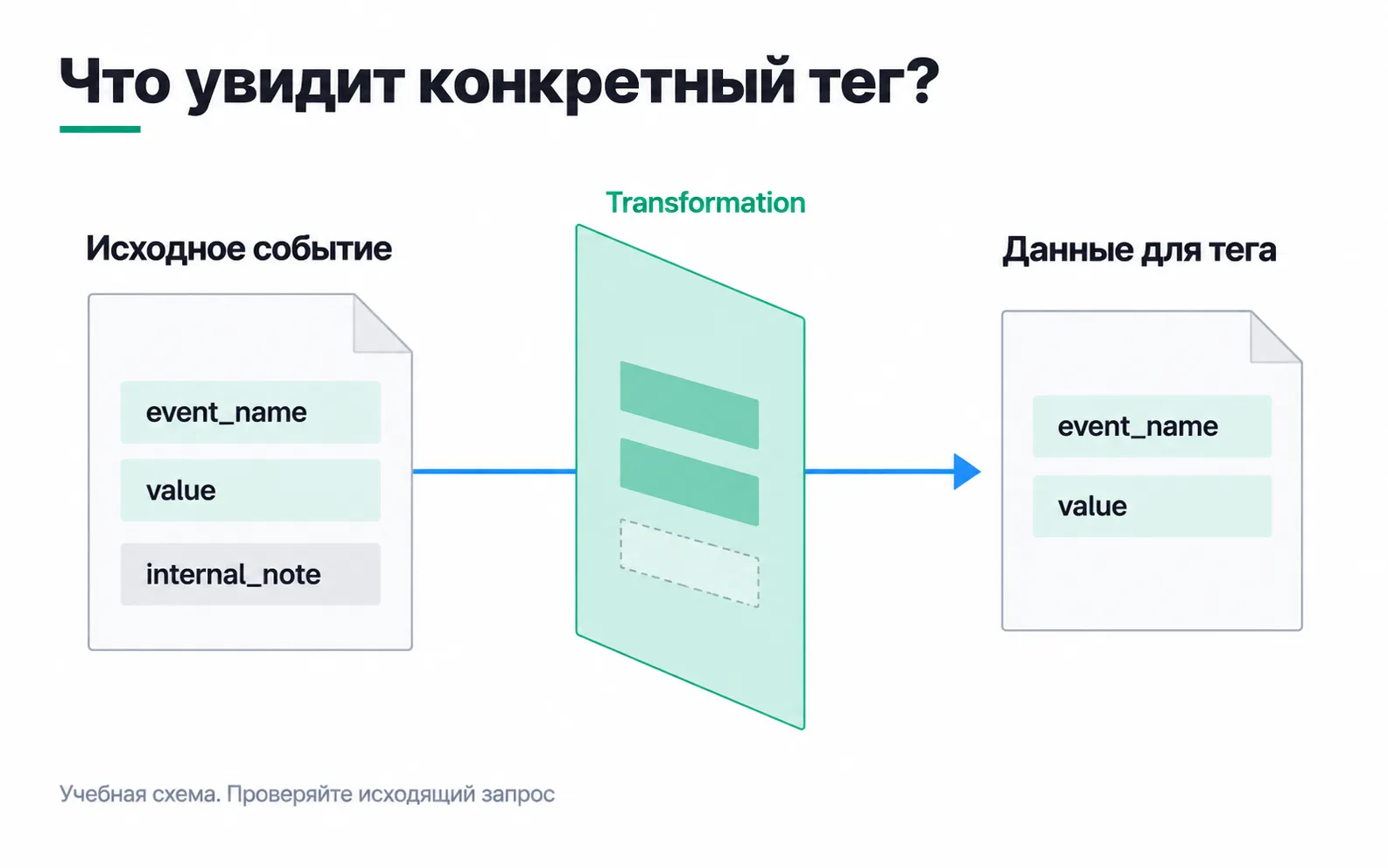
Now about the picture. The tag on the right is left with event_name and value, and two different transformations lead to that result. An Exclude for internal_note removes one field, and the tag gets everything else as before. An Allow for event_name and value keeps only those two fields. The diagram shows no difference because the event has only three fields. A real GA4 event has many more, and the Allow strips client_id, the page address and everything else the GA4 tag needs to work.
Where to see this. In Preview, select an event and open the Tags tab. Only tags that fired have transformation details: they list which transformations ran and in what order, and the Event Data box with "Show Original" ticked shows the fields before and after. If a transformation removed a required field and the tag did not fire, there are no details, and you have to look in the list of transformations.
Consent reaches the server in different ways
In basic consent mode, Google tags do not load at all without consent, so the server gets nothing from those visitors. In advanced mode the tags always load, and on refusal they send anonymous measurements without cookies (consent mode on the server). So in advanced mode, events from people who refused do reach the server: that is why Google's Exclude example removes parameters from requests where gcs equals G100 or G110. Google tags adjust to the refusal on their own. A Meta or TikTok tag fires on its trigger unless you added a consent condition, which is why every third-party tag in the server container gets rechecked with a refusal after the site moves to advanced mode, as in the write-up on Consent Mode v2 and server-side GTM.
Your own domain is context, not a guarantee
A subdomain or a path on the main domain gives the server the site's context: it can set its own cookies, including HttpOnly ones (a custom domain for the server). That is where the domain's benefits end. It does not make a data transfer lawful, and the visitor's consent still decides which tags may fire. A server with an address on your domain still runs in Google Cloud or with a provider, and whoever owns that environment may have access to the data (manual setup). How long a cookie lives is up to the browser and its own rules, and a DNS record does not change them. Instances, logs and server costs are chosen together with the sGTM hosting.
Debug through to the recipient's response
Take one test event through the chain in Preview:
- On the left there is an incoming request with events under it. No request means the problem is with the sender: the server address and the browser Preview is open in.
- On the Request tab, the client box shows the client you expected.
- In Event Data, the event name,
value,currencyandtransaction_idmatch what the site sent. - On the Tags tab, the tag you need has fired, and its details show which transformations ran.
- On the Request tab, the outgoing requests show what went to the recipient and which response code came back.
- The Console tab shows no tag errors.
A tag that fired and a 200 response mean the container did its job. Whether the purchase itself is right only a check of order numbers against the CRM will show. After publishing you watch the flow at the recipient (the GA4 realtime report, diagnostics in Events Manager) and in the server log.
Exercise: find the missing purchases
Take the test server container you built in the lesson on how server-side GTM works, and replay the school's week.
After the first step the GA4 tag will not fire or will fail: Allow drops fields that Google tags need. The same Allow with no affected tags strips fields from every tag, so you check each one, not just GA4. In the school's case the cause is confirmed the same way: five days without purchases in GA4 only pointed where to look, and replaying it in Preview is what proved it. The message to the customer could read: "On Wednesday a field filter for the revenue log was added to the server container. It applied to all tags, and the GA4 tag and the ad tags stopped receiving the fields they need: Meta and Google Ads show no purchases since Wednesday either, and we reproduced the problem with a test purchase. The filter is now limited to one tag, purchases are reaching every system again, and we are calculating last week's ROAS from the CRM: 12 payments from ads, 300,000 ₸ on 200,000 ₸ of spend, which is 1.5."
Video: setting up server-side GTM
The video is in Russian.