An online school in Almaty sells an analytics course for 25,000 ₸, the same course we set up generate_lead and purchase for in the lesson on GA4 (the numbers in this lesson are made up). The owner wants payments sent to Meta and Google Ads from a server, and the developer asks what exactly to deploy and where the data will go. The place to start is not hosting but how a single request moves through a server container. We will follow the payment for order course_order_42, then build the whole chain for GA4.
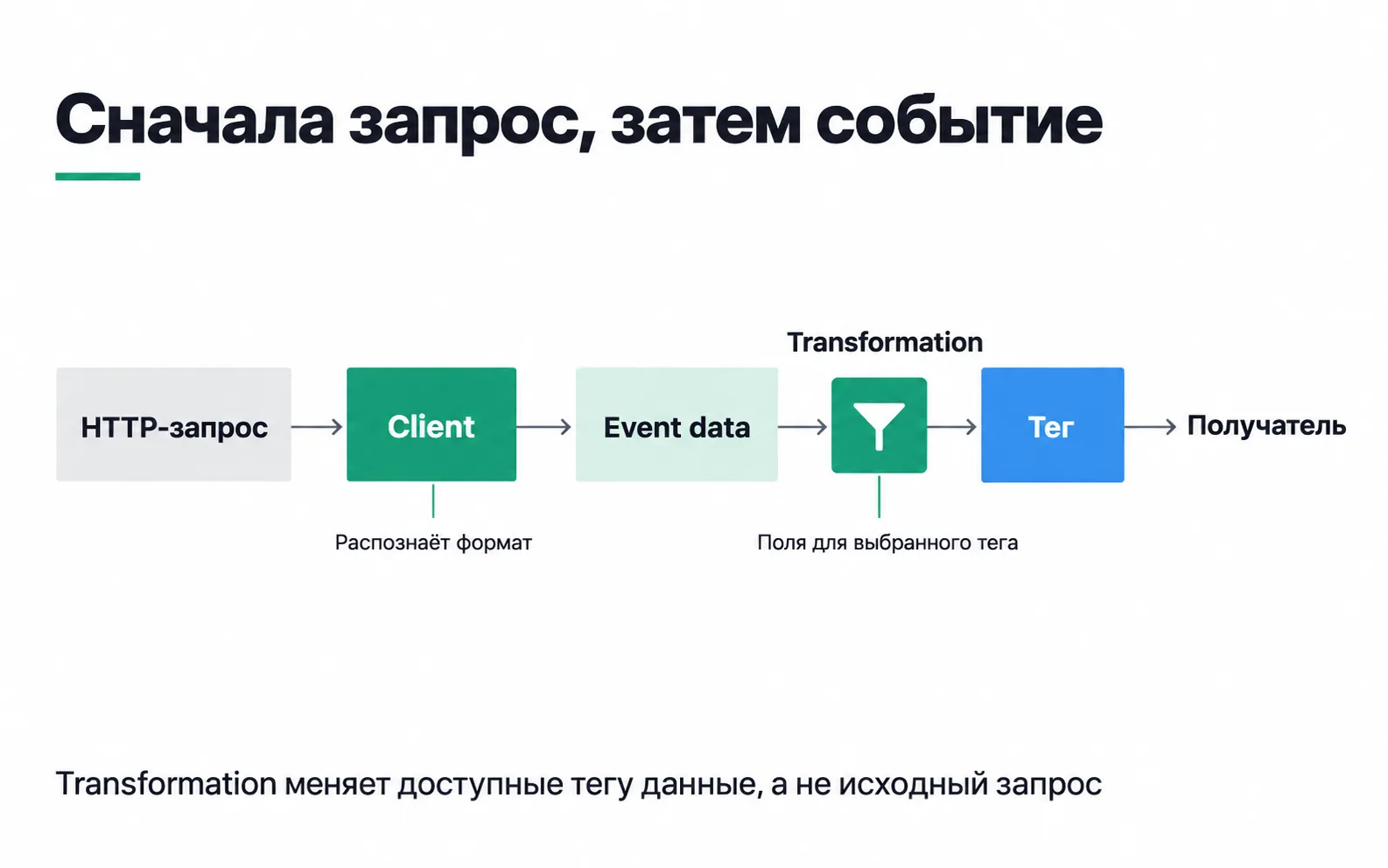
How a request moves through the container
A GTM server container does not run in the visitor's browser. It runs on a server with its own address. The site sends HTTP requests to that address, and inside the container clients, triggers and tags work on them.
A client translates a request from the sender's protocol into the container's language. Every incoming request is offered to all clients in turn, starting with the highest priority. The first one that recognises the format claims the request, and the other clients never see it. A client that does not recognise it passes it on (how clients work). A new container already has a GA4 client, which understands requests from the Google tag.
Once it has claimed the request, the client builds one or more events from it. Our payment becomes a purchase event, and its event data holds value 25000, currency KZT, transaction_id course_order_42, plus technical fields such as the visitor ID. Triggers look at each event and decide which tags should fire. A tag takes the event data, converts it into its recipient's format and sends an outgoing request: the GA4 tag to Google Analytics, a Conversions API tag to Meta.
Now for what the container cannot see. It has no page, so it has no DOM, no clicks, no scrolling and no dataLayer. All it has is what arrived in the request: the address, the parameters, the headers and the cookies of its own domain. If the site sends purchase when the "Thank you" page opens rather than after the payment is confirmed, the server will pass that mistake on to every recipient. You fix it where the event is born: on the site or in the GTM web container.
Web GTM is just one of the senders
The familiar setup looks like this: the site has a web container, its Google tag sends events to the server, and the server container hands them out to recipients. But you do not need a web container for this. You can send straight from gtag.js, and a mobile app or a backend can send Measurement Protocol requests, which the Measurement Protocol client claims (ways to send data).
That matters for the school. The payment confirmation reaches the backend from the payment provider, and the buyer may never come back to the "Thank you" page. If the backend sends purchase to the server itself, the payment reaches recipients without involving the browser: that is how S2S server-side tracking works when the tab is long closed but the payment has gone through.
Arbitrary JSON from a CRM does not become an event until a client that understands that specific format claims it: a built-in one, one from the template gallery, or one written for your system. Without such a client, no tag fires.
Where the server will run
You create a server container in GTM the same way as a web container, except that under "Target platform" you choose "Server". GTM then offers to set up a tagging server. There are two options, and the manual one can be handed to a provider (setup overview):
- "Automatically provision tagging server". GTM creates a Google Cloud project and a Cloud Run server; you need a Google Cloud billing account for it.
- "Manually provision tagging server". The tagging server is a Docker image you run on your own infrastructure. GTM shows a Container Config string, which you pass to the server (manual setup). Providers such as Stape plug in the same way: you paste the string into their dashboard, and they deploy and run the server themselves. Whoever owns the environment the server runs in may have access to your data, so read the provider's terms before the customer's data starts flowing.
How many instances to keep, what to do with request logs and what server-side GTM really costs are decided when you choose the sGTM infrastructure.
Once the server is running, GTM needs its address. With manual setup you add it under Admin > Container Settings, using the "Add URL" button in the Server container URL field. You can test the link right away: Preview opens, and the server address with /healthy appended answers ok (Cloud Run guide).
The server address: a path, a subdomain or the provider's address
A new server gets an address on the provider's domain; for Cloud Run that is run.app. Data sent there does arrive, but the server runs in a third-party context. For the site https://www.example.com, Google lists three options (a custom domain for the server):
| Option | Example address | What to set up | Server-set cookies |
|---|---|---|---|
| A path on the main domain | https://www.example.com/metrics | A CDN or load balancer that forwards requests from that path to the server; sometimes DNS | Yes |
| A subdomain | https://metrics.example.com | A DNS record | Yes |
| The provider's address | https://metrics.run.app | Nothing, it works out of the box | No, JavaScript cookies only |
The difference is in cookies. On a path or a subdomain the server can set its own cookies right in its response, including HttpOnly ones that scripts on the page cannot see; on the provider's address you are left with cookies set from JavaScript. A path gives you the same origin as the site, and that is the option Google calls the best practice, but it needs a CDN or a load balancer. A subdomain is a different origin on the same site, but a DNS record is enough.
Your own address changes the context the server runs in. It does not override visitor consent or browser rules.
Setting it up for GA4, step by step
The order for a test site or your first customer:
- Create the server container and the server as described above, and make sure the server address is in the container settings.
- Map a subdomain or a path of the site to the server and replace the address in the container settings with the new one. On a test site you can put this step off.
- In the server container, open Clients and look at the GA4 client. If no other client competes for GA4 requests, the priority can stay at 0. While the server lives on the provider's address, leave the client's cookie setting at JavaScript Managed: until you change the domain, that is the only option that works (configuring the GA4 data stream).
- Create a tag of the Google Analytics: GA4 type. Leave the fields at their defaults; it takes the measurement ID and parameters from the event data. The trigger should be a Custom trigger set to Some Events, in which the built-in Client Name variable equals the client's name, for example
GA4. That is the name, not the client type, which is called Google Analytics: GA4. - In the web container, create a variable of the type "Google tag: Configuration settings" with a
server_container_urlparameter whose value is the server address. Select it under "Configuration settings" in the Google tag and give the tag the "Initialization - All Pages" trigger. If the site uses gtag.js without GTM, the address goes into theconfigcommand:
- Open Preview for the server container, and open the site in the same browser. Requests such as
collect?v=2will appear on the left, with events under them. The Request tab shows which client claimed the request, what came in, and which outgoing request went to GA4, along with the response code (preview and debug). Requests from a different browser do not show up in Preview (testing your setup). - Publish the server container, then the web container.
On a customer's project you do not switch the production tag over straight away. You create a separate GA4 property for the server-side data and collect into both properties for a while, until the numbers agree (parallel measurement). Say that over a week the old property shows 15 purchases and the new one 14. One order is not enough to name a cause. Export the week's order numbers from the CRM, find the one that is missing from the new property, and repeat that purchase in Preview: the same payment method, the same device. Switch the production tag once the gap is explained.
Transformations: Allow, Augment and Exclude
You can put a transformation between the event data and the tag. It runs after the client has built the event data and changes what the selected tags will see. It does not touch the incoming request. There are three types (transformations):
- Allow (Allow parameters) passes only the listed parameters to tags and drops the rest, including the ones Google tags cannot work without.
- Augment (Augment event) changes a parameter's value or adds a new one.
- Exclude (Exclude parameters) removes the listed parameters.
By default they apply in the order Allow, Augment, Exclude. You change the order with a priority: the higher a transformation's number, the earlier it runs. Each one has Affected Tags and Matching Conditions, and left unset, a transformation applies to every tag, every time.
Because of that default, an Allow list that is too narrow breaks the data flow without anyone noticing. Say you allowed event_name, page_path and client_id for a tag that writes events to BigQuery, and forgot to choose the affected tags. The Allow strips fields from every tag, and the tags that need more, GA4 included, stop firing: a transformation that removes fields a tag needs can stop that tag. The site shows no errors; the reports simply get fewer events. You can only find a break like that by looking at what data each tag receives.
Now the case transformations are actually for. The site's admin panel adds a discount note to the order, and the school's developer passes it in purchase as an internal_note parameter: "staff discount 30%". Neither the ad accounts nor GA4 need that note. Meanwhile some server tags pass extra parameters to their recipient with no setup at all, and a transformation is exactly how you remove them (sending data to the server). So we create an Exclude for internal_note and choose the ad tags and GA4 under affected tags. The acceptance test, using the Meta tag as the example:
- In Preview, select the
purchaseevent and open the Tags tab. - Click the Meta tag. The tag details show which transformations ran and in what order.
- The Event Data box must not contain
internal_note. With "Show Original" ticked, it appears among the original parameters, which is how it should be. - On the Request tab, open the outgoing request to Meta:
internal_noteis not there either. Check the same two places for the Google Ads and GA4 tags.
The field stays in the incoming request, because a transformation does not rewrite it. Since no recipient needs the note, the right fix is to remove it on the site and keep the Exclude as a safety net until the developer does. And keep the logs in mind: by default Cloud Run records the path and parameters of every request, so whatever reaches the server ends up there too.
Consent
Consent is collected in the web container. The banner passes the visitor's choice to the Google tag, which adds consent parameters to the request to the server, and Google tags in the server container adjust to that choice on their own, so consent mode is set up only in the web container (consent mode on the server). But that rule is about Google tags. A Meta or TikTok tag, or your own HTTP request tag, in the server container fires on its trigger for every visitor until you add a consent condition yourself. You add that condition to each third-party tag separately and then test it with a refusal, as in the write-up on Consent Mode v2 and server-side GTM.
Exercise: a server container for a test site
Take the test site with a form from the GA4 lesson, or any site of your own.
If Preview stays empty, the first things to look at are the address in server_container_url and the browser: the site and Preview must be open in the same browser. If the request is there but the GA4 tag did not fire, open the trigger condition: it should hold the client's name, not its type. If the tag fired but the outgoing request shows an error code, the recipient rejected something, and the event data is where to dig. If the form with an error still reached the server, the tag on the site fires on the click rather than on the server's response, and the fix belongs in the web container. What you end up with is a screenshot that lets another person see the flow works.