The online school from the GTM and GA4 lessons already spends 120,000 ₸ a week on Instagram ads, but only GA4 and the CRM know about the leads (the numbers in this lesson are made up): the site pushes lead_submit_success to the dataLayer once the server has accepted the form, and GTM passes it on to GA4. Now the media buyer is building a campaign with the Leads objective in Ads Manager, and at the ad set level it asks for a pixel and a conversion event. There is no pixel on the site, which means Meta sees clicks on the ads but has no idea which of those people submitted the form, so the new campaign has nothing to learn from.
We'll install the pixel through the same GTM and on the same site event as the GA4 tag.
What a pixel is and which event to pick
The Meta pixel is code you get in Events Manager and put on the site. In Events Manager it lives under Data sources. The base code loads Meta's library, starts it with your pixel ID and sends PageView on every page load (the pixel base code). It belongs on every page of the site.
Everything else is events on top of the base code. Standard events have names Meta recognises and supports across its ad products; custom events are ones you name yourself (standard and custom events). For forms, the list of standard events has several that look alike:
| Event | How Meta describes it | When to use it |
|---|---|---|
Lead | A person submits information knowing the business may contact them, for example by filling in a form | A sign-up form after which a manager calls or messages |
CompleteRegistration | A person gives information in exchange for a service, for example an email subscription | Creating an account, subscribing |
SubmitApplication | An application for a product, service or programme: a credit card, a course, a job | An application that gets reviewed: a loan, an admission |
Schedule | Booking an appointment to visit one of your locations | Booking a doctor or a salon for a set day and time |
The school needs Lead: after the form, a manager messages the person on WhatsApp. It's the same event you choose at the ad set level in the lead generation test. Spell it exactly like that, with a capital letter: Meta is case sensitive, and lead instead of Lead shows up in Events Manager as a custom event (best practices for standard events).
The choice of event is not a formality. A leads campaign shows ads to the people Meta expects to be most likely to send Lead, and it learns from those who already have. If Lead fires on a button click, it will go looking for people who like pressing buttons, and the CPL in the ad account will come out lower than in the CRM.
Install the base code through GTM
- In Events Manager, click Connect data, choose Web and click Connect. Enter a pixel name and click Create pixel (creating a pixel). Then choose to set it up yourself, pick Meta pixel only and manual code installation, and copy the base code.
- In GTM, open Tags → New → Custom HTML and paste the code. Name the tag
Meta - base. - In the tag's advanced settings, set the firing option to once per page, and choose All Pages as the trigger. That is what Meta itself recommends in its GTM instructions.
Before you do this, find out whether the site already has a pixel: a previous contractor may have pasted it into the template, or a site builder plugin may have added it. The easiest way to see is the Meta Ads Data Advisor extension for Chrome, which shows which pixels and events it found on the page. If a pixel is already there, work out whose it is and what it sends before deciding which installation stays.
Send Lead once the server has accepted the form
Create a second Custom HTML tag, Meta - Lead, with a single line:
For its trigger, pick the same Custom Event, lead_submit_success, that the GA4 tag uses in the Google Tag Manager lesson. One message from the site fires two tags: generate_lead goes to GA4, Lead goes to Meta, and both count the same thing.
A Form Submission trigger or a button click is the wrong choice here for the same reason as with GA4. Both fire on the attempt to submit the form and know nothing about the server's reply. Someone mistypes the number, presses the button again, corrects it, and Meta gets three leads instead of one and goes looking for more people like that.
Find Lead in Test Events
Publish the container with both tags first. On a test site that's safe, and the window Meta opens will get the published version rather than the draft you see in Preview.
- In Events Manager, open Data sources, select your pixel and go to the Test events tab (how the tool works). Keep it open: website events are recorded only while that page is open.
- In the browser events section, enter the test site's address and click Open website. It opens in a new window or tab.
- Right after it opens,
PageViewshould appear in the list. - Submit the form with valid data. Within a minute,
Leadshould appear, once. - Submit the form with an empty email field: no new
Leadshould appear. Then submit a valid form and reload the page: there should be no secondLeadafter the reload. - Take a screenshot of
Leadin the list. That is the result of the Start track step.
If nothing arrives within a minute, Meta suggests turning off your ad blocker and reloading the page (if events don't show up).
Test events are real events. The Clear activity button empties the tab, but the events stay in Events Manager, in ads reporting and in audiences. On your own test site that doesn't matter, but on a client's pixel agree on testing in advance and keep the number of test leads small, because every one of them ends up in the reports. In Events Manager's general charts, events take 30 minutes or more to appear, so right after setup look only at the test tab.
When one purchase arrives twice
Later on, Conversions API gets added next to the pixel: the server sends Meta the same events as the browser. Meta itself recommends this, because the server can deliver an event the pixel lost to a network problem or a page loading error (best practices for standard events). But then every event arrives twice, and Meta has to understand that it's one fact. Here is how it works for the online coffee shop from the Meta Conversions API lesson: order O42 for 15,000 ₸.
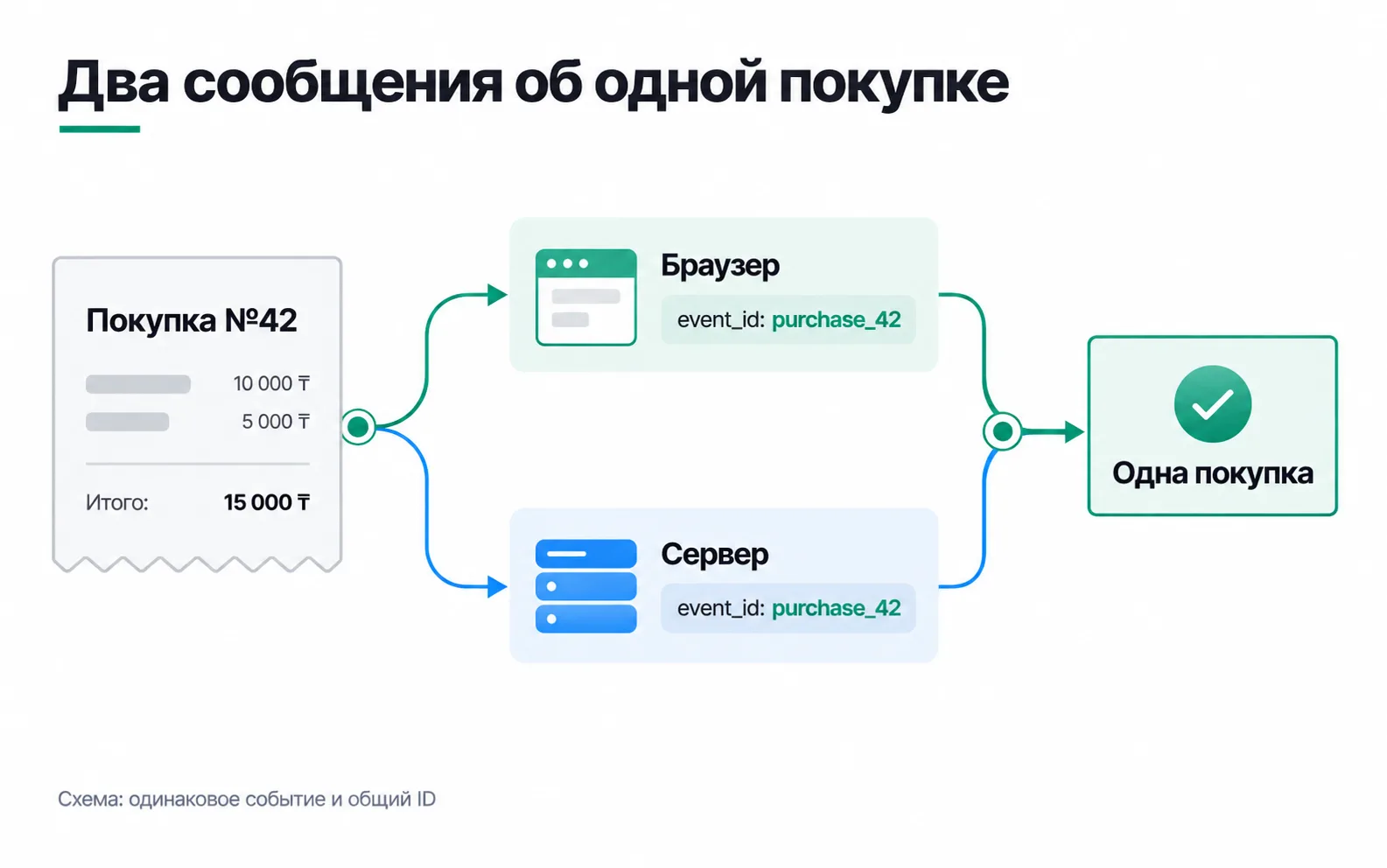
Meta merges the two copies when the event name and the ID match, and it does so within 48 hours of the first event with that ID (deduplicating pixel and Conversions API events). Of the two copies, it counts the one that arrived first (about event deduplication). In the pixel the ID goes in the eventID field, the fourth argument; on the server it's the event_id field:
The ID belongs to the event, not to the person or the channel. A resend of the same purchase goes out with the same O42, and the next purchase gets a new number. If the browser and the server each make up their own random ID, Meta can't match them by ID, and the purchase risks being counted twice: 30,000 ₸ instead of 15,000 ₸. If one ID is given to every purchase a customer makes, Meta merges different orders into one when they arrive within the same 48 hours. The rule is the same for a lead: both copies carry the same lead number. How to build this on the server is covered in that same Conversions API lesson.
TikTok: same setup, different names
The TikTok pixel goes in through GTM the same way: base code on all pages, the form event on the same lead_submit_success trigger. TikTok's form event is also called Lead: in May 2025 TikTok renamed SubmitForm to Lead. The old name still works, but use Lead for a new setup. TikTok merges pixel events with its server-side Events API when the event and the event_id match (deduplication in TikTok). More on the ad account in the lesson on TikTok ads, and on server-side sending in the lesson on the TikTok Events API.
Assignment: a pixel on your test site
The Start track step counts as done when a form submit on the test site shows in Test Events as a Lead event.
If PageView arrived but Lead didn't, submit the form in GTM Preview. When lead_submit_success isn't there, the site's code needs fixing; when the event is there but the Meta - Lead tag didn't fire on it, compare the name in the trigger with the code. If the list shows lead instead of Lead, fix the case in the tag: right now Meta treats it as a custom event, and you won't be able to pick it as Lead in the ad set.
Two Lead events for one submission, or an extra one after a page reload, mean there's a second source: an old Form Submission tag, a pixel in the site's code, or the browser resubmitting the form. And if not even PageView arrived, rule out the ad blocker, an unpublished container and someone else's ID in the base code, one at a time.
Once the screenshot is ready, this same Lead is what you'll choose at the ad set level in week two of the track, and every day you'll check the leads in the ad account against your own list.